
Before You Start: What You Need
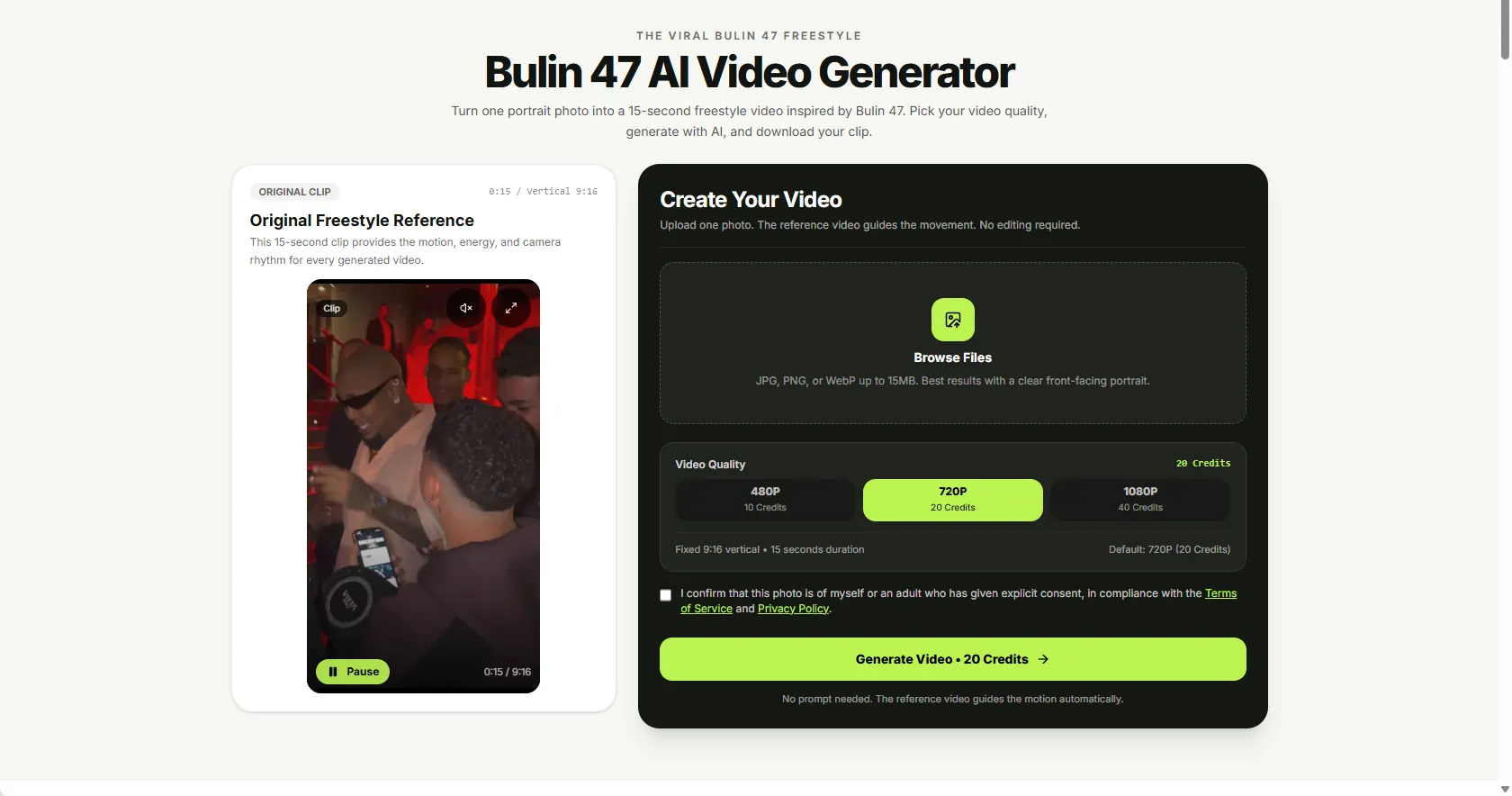
You need one image of yourself or an adult who has explicitly agreed to appear in an AI-generated video. Accepted uploads are JPG, PNG and WebP, with a maximum file size of 15 MB. The clearest results usually begin with a single person, visible facial features and enough light for the model to read the portrait.
The generator already uses a fixed Bulin 47 freestyle reference, so you do not need to supply another source clip or write a prompt about choreography. Every completed video uses the same fixed 15-second length and a vertical 9:16 frame, suitable for a phone screen.
Step 1 — Upload a Clear Portrait Photo
Open the video generator and choose the upload area. Select a JPG, PNG or WebP image under 15 MB. Start with one clearly visible adult subject. A sharp front-facing portrait with the head and upper torso in frame tends to provide more useful information than a distant full-body photo, an extreme close-up or a heavily edited selfie.
Step 2 — Choose Resolution and Check Credits
The generator offers three output qualities. Every option produces a 15-second, 9:16 vertical video; the resolution changes the credit cost. The default is 720P.
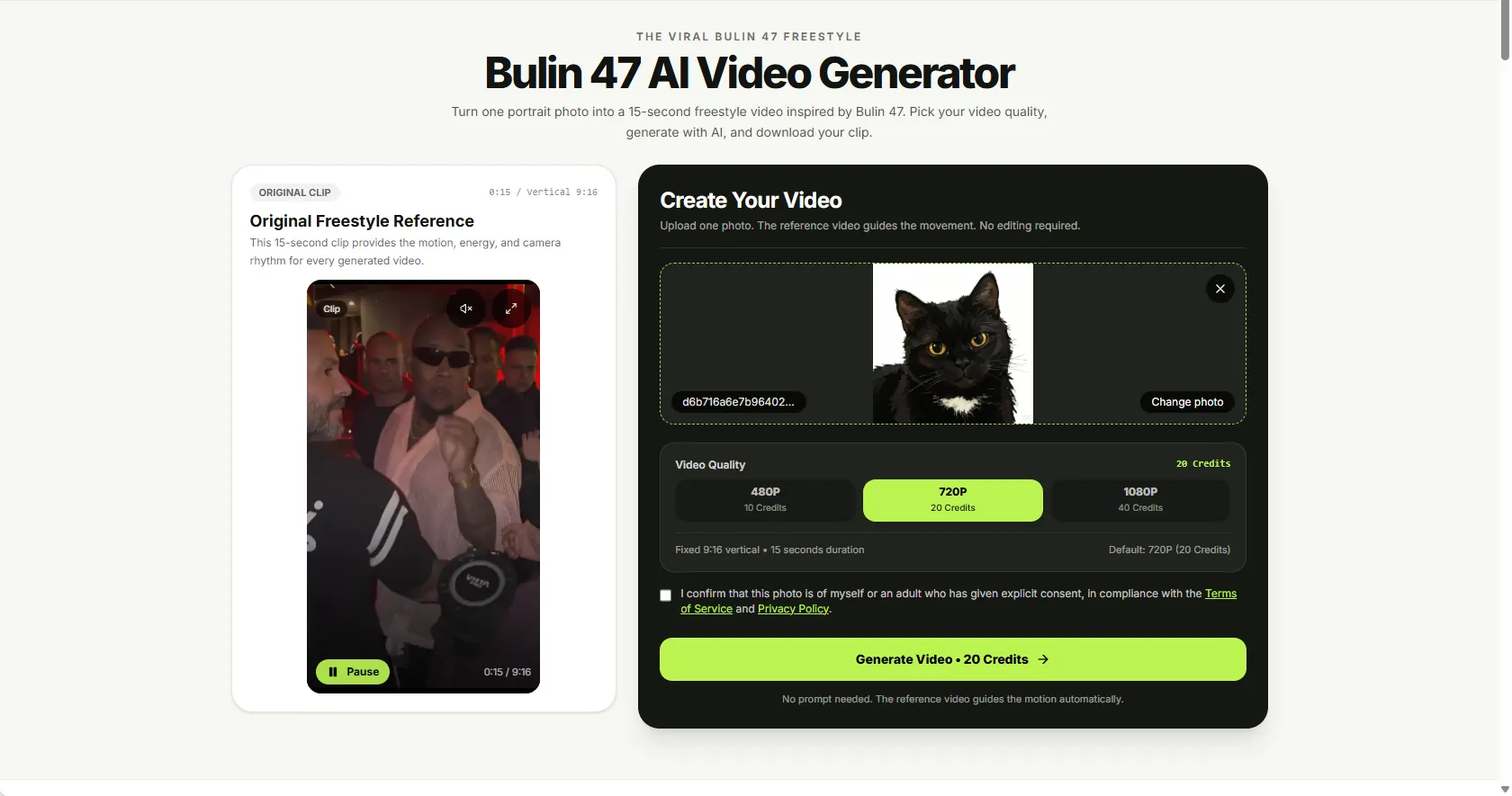
| Quality | Credits per video | Good for |
|---|---|---|
| 480P | 10 | A lower-cost first try |
| 720P | 20 | A balanced default |
| 1080P | 40 | Maximum available resolution |
You can change the quality before starting. Your required credits are displayed on the generator.
Step 3 — Generate, Preview and Download Your MP4
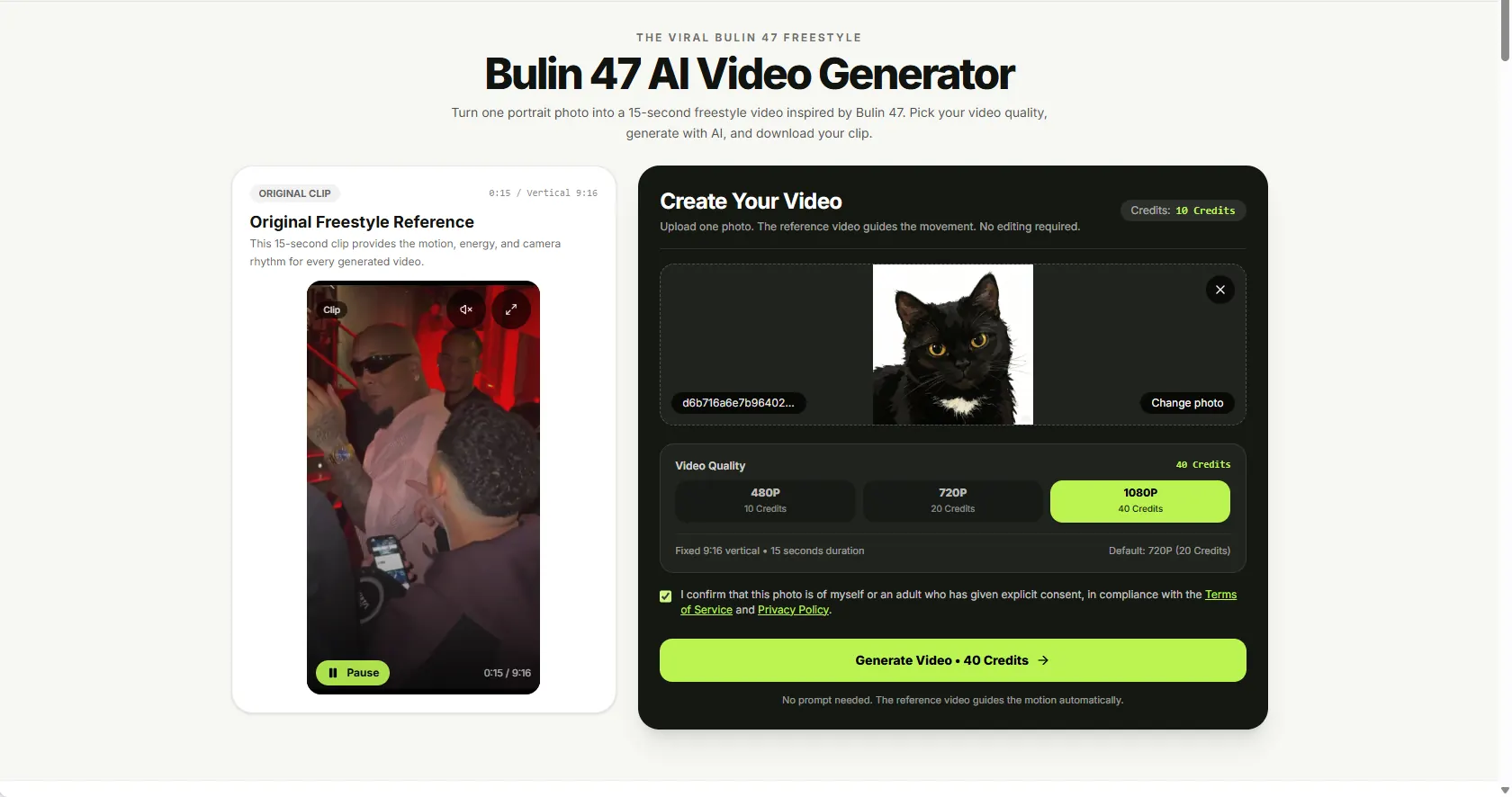
Sign in if needed, confirm that you have permission to use the portrait, and click Generate Video. When the job finishes, preview the result and download the MP4. You can also check ongoing or completed tasks in My Creations.
Portrait Tips: What Works and What to Avoid
Do
- Use one clear, front-facing adult portrait.
- Keep eyes and the upper body visible.
- Choose even lighting and a natural expression.
Avoid
- Group shots or several visible faces.
- Sunglasses, masks or heavily obscured faces.
- Blurry, very dark or heavily filtered images.
If Your Bulin 47 AI Video Is Not Working
My Image Will Not Upload
Confirm that the file is JPG, PNG or WebP and no larger than 15 MB. If the image came from a messaging app, check its actual file format rather than relying on its filename. Try exporting a normal JPEG from your device, then select it again.
I Do Not Have Enough Credits
The balance needs to cover the chosen resolution: 10 credits at 480P, 20 at 720P or 40 at 1080P. Switching to a lower resolution may make an existing balance sufficient; otherwise, use the pricing page to select a suitable pack.
My Job Failed or Was Blocked
If a generation task fails or is blocked, the reserved credits are returned according to the current service rules. A finished AI video can vary from the reference in facial detail or movement, so a completed result is not a guarantee of an exact reproduction.
Review pricing and credit packsHow to Make a Bulin 47 AI Video FAQ
Do I need to write a prompt?
No. The generator uses a fixed freestyle reference. Upload a portrait and choose the video quality.
How long is the generated video?
Every output is 15 seconds long and uses a 9:16 vertical format.
What image formats can I upload?
JPG, PNG and WebP files up to 15 MB are accepted.
Can I make a Bulin 47 AI video for free?
Browsing the site is free, but generation uses credits. See our credit and pricing guide for the exact costs.
Where can I find my generated video later?
Sign in and open My Creations to check task progress and access saved results, subject to the site's retention settings.